When the Power Dies: Rescuing an NTFS Drive on Linux
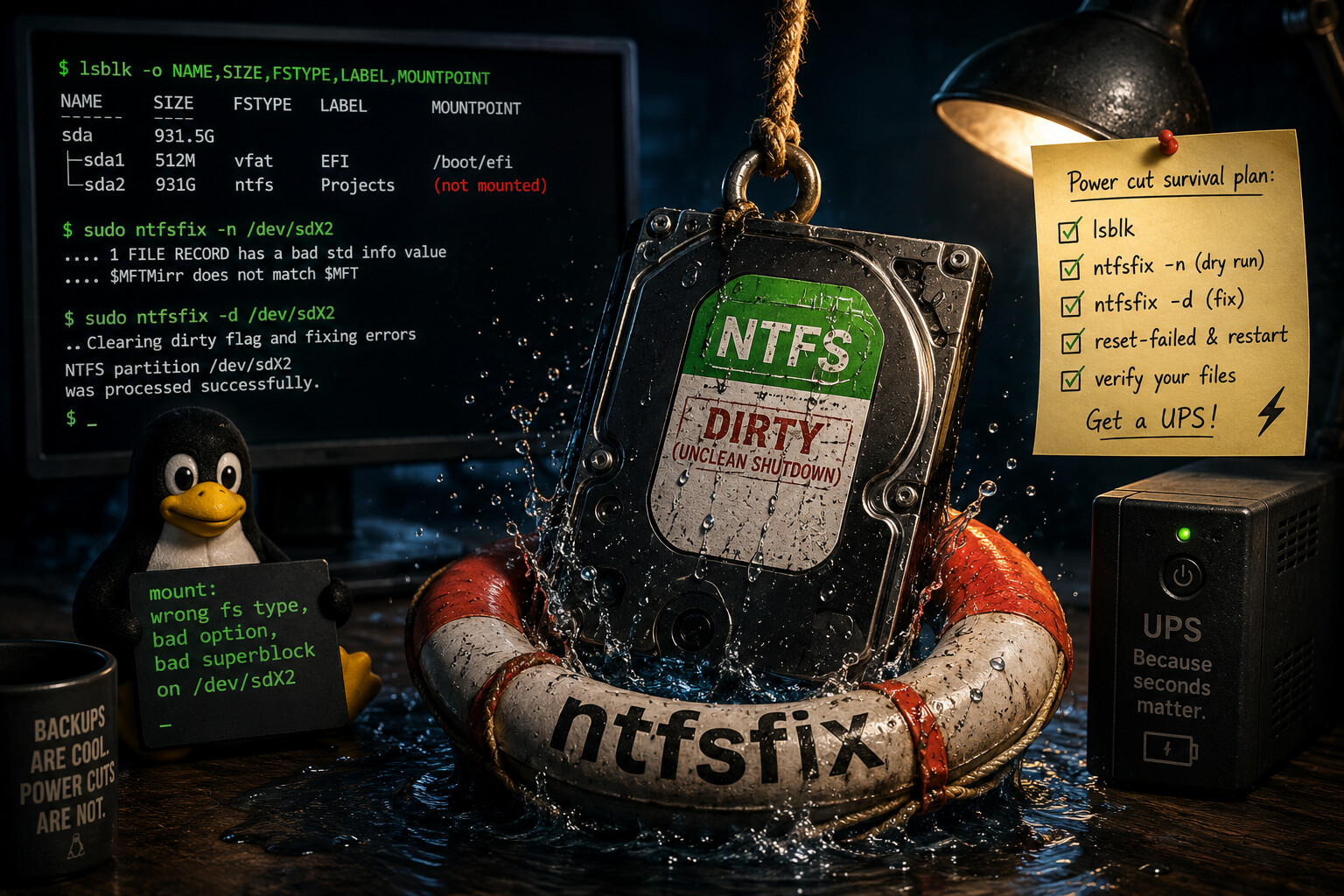
Hey everyone, your friendly neighborhood developer is back-and this time with a small horror story that had a happy ending.
My PC lost power out of nowhere. When it booted back up, the big NTFS drive I keep all my projects on simply refused to show up. The folder where it should live was just… empty. Cue the mild panic. Let’s walk through how I got everything back, because the fix is easier than the scare suggests.
The Symptom
The drive is set to auto-mount at a folder in my home directory. But after the reboot, that folder was empty and the disk was nowhere to be seen. Digging into the system logs, one line stood out:
1

mount: wrong fs type, bad option, bad superblock on /dev/sdX2
Scary words. But here’s the good news: this is usually not a broken disk.
What Actually Happened
When you pull the power on a running machine, NTFS doesn’t get the chance to close up shop cleanly. So it flips a little “dirty” flag that means “I wasn’t shut down properly, check me before you trust me.”
Linux’s built-in ntfs3 driver sees that flag and politely refuses to mount the drive. It’s not being difficult-it’s protecting your files from getting scrambled further. Think of it like a shop with a “CLOSED - INVENTORY IN PROGRESS” sign on the door. The stuff inside is fine; you just can’t walk in yet.
First, I confirmed the disk was actually there and healthy:
1

lsblk -o NAME,SIZE,FSTYPE,LABEL,MOUNTPOINT
Sure enough, the drive showed up with all its size and NTFS label intact. The data wasn’t gone-it was just locked behind that dirty flag.
The Fix
The tool for the job is ntfsfix, which comes with the ntfs-3g package. If you don’t have it:
1

sudo pacman -S ntfs-3g
Before changing anything, I did a dry run with -n. This looks but doesn’t touch:
1

sudo ntfsfix -n /dev/sdX2
It reported a tiny mismatch in the drive’s internal file table ($MFT vs its backup copy $MFTMirr)-a classic power-loss hiccup, and exactly what ntfsfix is built to repair. Good. Time to do it for real:
1

sudo ntfsfix -d /dev/sdX2
The -d clears the dirty flag once the drive is fixed. A few seconds later:
1

NTFS partition /dev/sdX2 was processed successfully.
Chef’s kiss.
The Last Little Gotcha
I tried to open the folder again and… still empty. Huh?
Turns out the auto-mount had failed so many times during my panic that systemd gave up and put it in a “failed” state. Once a unit hits that wall, it stops trying until you tell it to wake up:
1
2

sudo systemctl reset-failed 'home-*-Projects.*'
sudo systemctl restart 'home-*-Projects.automount'
And there they were-every last file, exactly where I left them. 🎉
Bonus: Make Sure Nothing Got Hurt
Once it was mounted, I wanted to be sure the files were actually readable, not just visible. A quick trick is to read every file and send it into the void-if anything is unreadable, it’ll shout:
1

tar -cf /dev/null --ignore-failed-read -C ~/Projects .
No errors. Every file survived the blackout.
Summary
If a power cut ever eats your NTFS drive on Linux, don’t panic:
bad superblockusually means “dirty,” not “dead.”- Confirm the disk is really there with
lsblk. - Peek first with
sudo ntfsfix -n, then fix withsudo ntfsfix -d. - If auto-mount is sulking,
reset-failedandrestartit. - Read your files back to confirm they’re healthy.
Oh, and one more thing: this is your friendly reminder to consider a UPS. No filesystem loves a sudden power cut, and a cheap battery backup buys you the few seconds needed for a clean shutdown. Stay safe out there!